
Redeeming a Steam gift is a quick process that adds new games or DLC to your account. When someone sends you a gift, you will receive an email or a notification on Steam client.
TLDR (A Quick Summary)
To claim your gift, sign in to Steam, open the gift notification, and select Accept Gift. You can then choose to add the game or DLC directly to your library or save it in your inventory for later.
Steps to Claim Your Steam Gift
1. Sign In to Your Account
Log in to the Steam Store. If you are a new user, select Join Steam to create a free account.
2. Open the Gift Notification
You will find your gift in one of two places:
Email: Click the "link to claim your gift" in the message from Steam.
Steam Client: Click the envelope icon (notifications) in the top right corner.
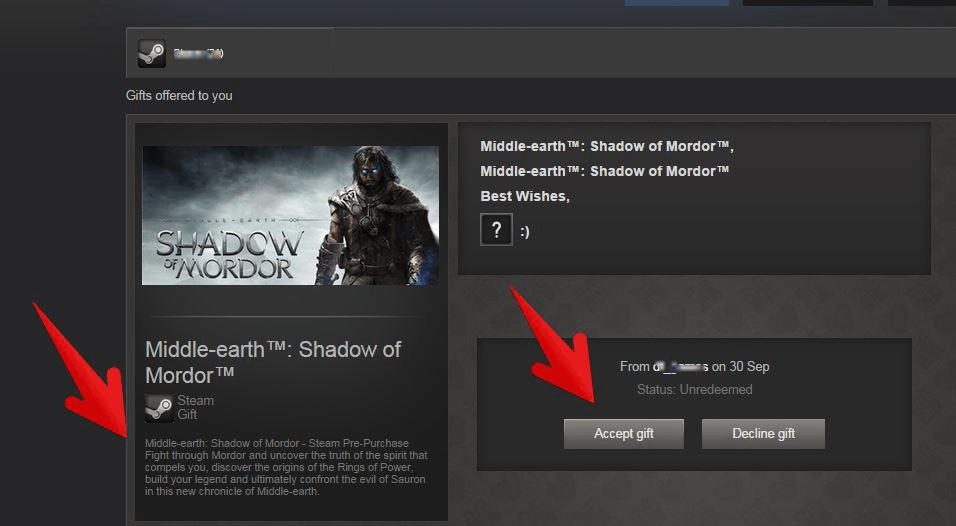
This will open your Steam gift page with two options: “Accept gift” or “Decline gift”.
3. Choose Your Delivery Option
After clicking Accept Gift, you must decide how to store the item:
Option | What it does | Best for… |
Add to my Library | Permanently binds the game to your account. | Playing the game immediately. |
Add to my Inventory | Keeps the gift as a tradeable/redeemable item. | Saving the game for later or re-gifting. |
4. Install and Play
If you added the game or DLC to your library, follow the steps below to start playing:
Launch the Steam Desktop App.
Navigate to the Library tab.
Locate the game and click the Install button.
Troubleshooting & Expert Tips
Important: Steam gifts are region-locked. If a friend in a different country sends you a gift, ensure the regions are compatible before attempting to redeem it.
Wrong Account? Always double-check your login. Once a gift is accepted into a library, it cannot be transferred to a different Steam account.
Missing Link? If your email link is broken, go to your Steam client and navigate to Inventory > Pending Gifts to claim it manually.
Declining a Gift: If you click Decline Gift, the sender will be automatically refunded.
Common Questions (FAQ)
Can I redeem a Steam gift on my phone?
Yes, you can accept gifts via the Steam Mobile App or a mobile browser, but you must use the desktop app to install and play the game.
What happens if I already own the game?
Steam will usually warn you if you already own the content. In this case, it is best to add the gift to your Inventory or decline it so the sender can get a refund.
How long do I have to accept a Steam gift?
Steam gifts typically remain "Pending" for 30 days. If not accepted within that window, they are automatically cancelled and refunded to the sender.
Ready to play? Follow these steps and you'll be in-game in no time. Enjoy your new content!