AOMEI Backupper Professional + Lifetime Upgrades 5PC - Download



説明どおりの商品を受け取れない場合、返金いたします。
[WARNING: Stay safe! Deals made outside Gameflip aren’t protected. Always trade and chat within Gameflip.] AOMEI Backupper Professional License Key Code Activation
Features:
• System Backup:
One-click back up Windows, settings, applications, and the files required for the computer to boot.
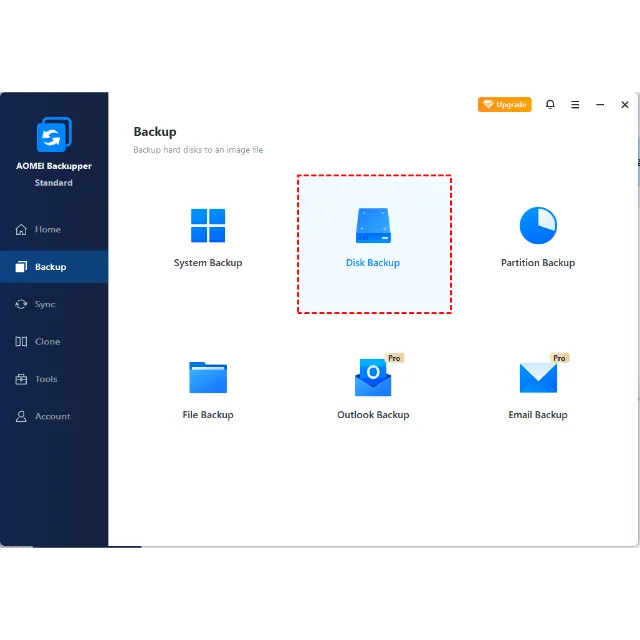
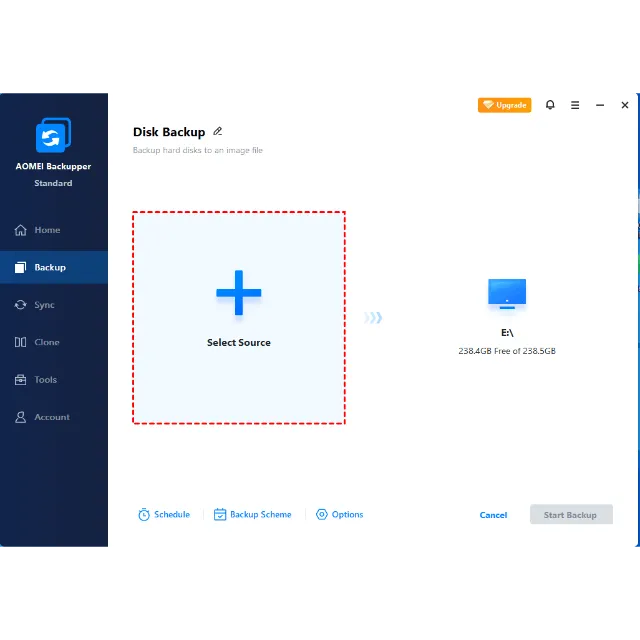
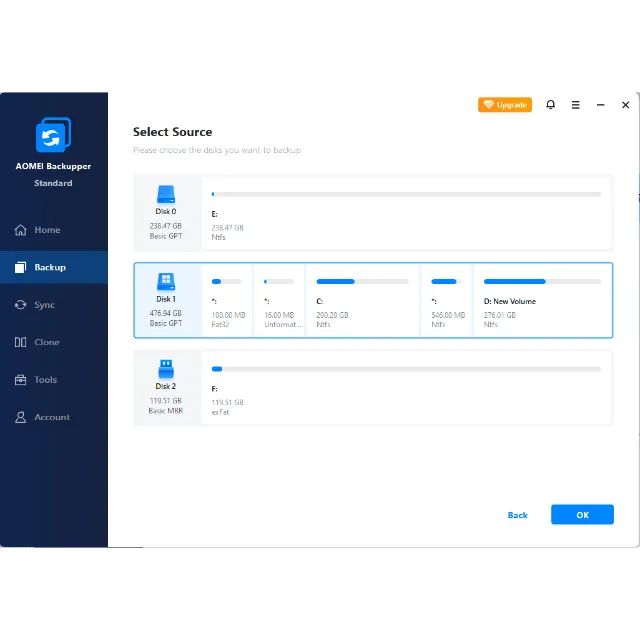
• Disk Backup:
Backup entire disk to protect everything on the drive.
• Partition Backup:
Flexibly choose separate partitions to backup, including dynamic disk volumes.
• File Backup:
Back up your files and folders automatically or manually to ensure you don’t lose anything with support to simultaneously choose
multiple files on the network drive as the backup source.
• Multiple Backup Destinations:
Backup files or folders can be stored in different destination like Internal & External Storage Devices, CD/DVD, NAS/Network Share,
cloud drives.
• File Sync:
Synchronize files / folders automatically with a schedule (daily, weekly or monthly) or real-time synchronize files / folders to target
path once any changes (addition, modification or deletion) happens in the source path.
• Schedule Backup:
Set up a schedule to back up your system and all files automatically, supporting daily, weekly, and monthly.
• Event-triggered Schedule Backups:
Automatically perform backup tasks based on user logon & logoff and system startup & shutdown.
• Incremental & Differential Backups:
On the basis of a full backup, save time and storage space by only backing up changed data.
• Backup Scheme:
Automatically delete old backup images based on specified values (the age or the number) to save backup disk space.
• Command Line Backup:
Create backups from the command prompt or using a batch (.bat) file for unattended processing.
• Hot Backup:
Create a backup image without closing running applications and restarting the computer.
• Universal Restore:
Restore a backup image created on one computer to another/new computer with dissimilar hardware, or migrate system from
physical to virtual (P2V) machine.
• Selective File Restore:
Selectively restore individual files and folders from a backup image file without recovering the entire backup.
• Command Line Restore:
Perform system restore, disk restore, partition restore and dissimilar hardware restore from command prompt.
• Restore Everything:
Get everything back by restoring your system, disk, partition and files to destinations where you want to put your data in.
• System Clone:
Migrate operating system (OS) and all applications in system drive to the faster SSD or a larger hard disk drive without re-installing
Windows.
• Disk Clone:
Clone a hard drive to another without creating a compressed image file. It allows resizing partitions during the cloning process.
• Partition/Volume Clone:
Create an exact duplication of your partition or dynamic disk volume, and exactly transfer data to another partition or hard drive.
• Command Line Clone:
Perform system clone, disk clone, partition clone from the command prompt.
• Create Bootable Rescue Media:
Make Windows PE & Linux bootable CD/DVD or USB flash drive. It can be useful to recover if your computer cannot boot. Support
manually add additional drivers when create Windows PE bootable media.
• Merge Backup Images:
Combine full backup and its chained incremental backups into a single backup for better management.
• Check and Explore Images:
Verify data integrity of image file to ensure it can be restored successfully. Mount image file as a virtual partition to browse the
contents in Windows Explorer.
• Encrypt and Compress Images:
Protect image file from unauthorized access with a password. Set the level of compression used for backing up process to save
time or save storage space.
• Export/Import Tasks and Logs Management:
Export all backup tasks stored in a file which can be imported later. View what operations the program has done and record the
events that occur during a backup process.
• Email Notifications and VSS:
Send backup completion status to your email by using your own mail server or AOMEI mail server to let you be informed in the
results of backup. Microsoft Volume Shadow (VSS) allows you to back up files that are in use, especially for open and locked files
backup.
もっと見る...
質問は公開されており、Gameflip ではなくユーザーによって行われます。名前、支払い情報、ゲーム プラットフォーム アカウントなどの個人情報を共有しないようにして、安全を確保してください。

コメントのためにログイン