EaseUS Disc Copy Professional 1-Year | Download & Activation



Get the item as described or your money back.
==> How to Clone Hard Drive?
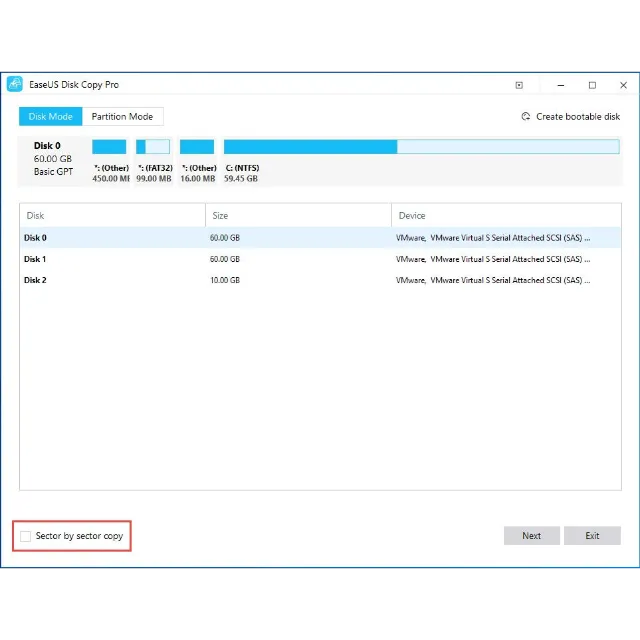
Step1:
Choose a source disk
Select a disk/partition and click the sector by sector to start a sector-level copy.
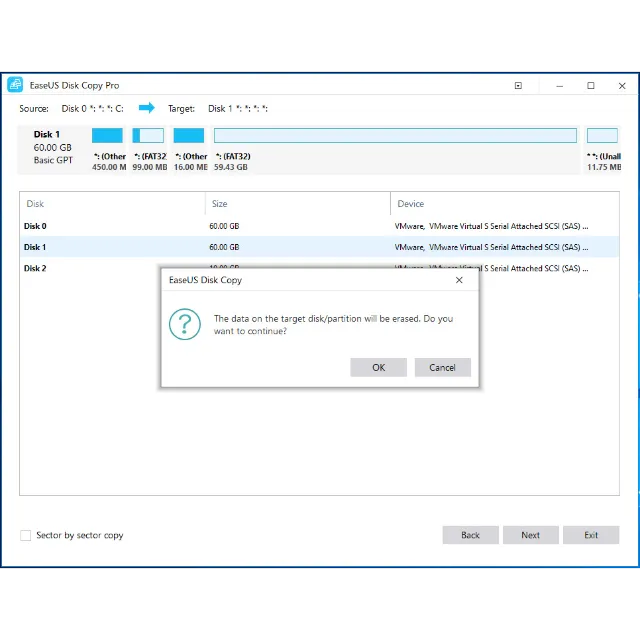
Step2:
Set up a target disk
Confirm a disk that you attempt to clone the source disk to.
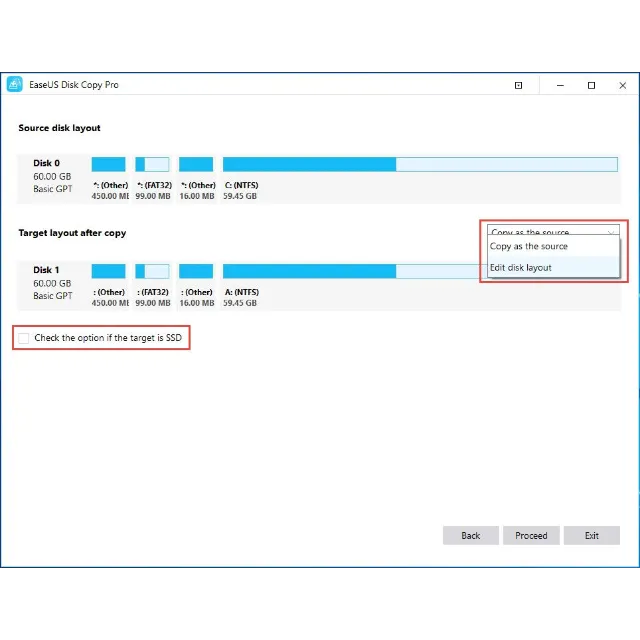
Step3:
Clone and edit disk layout
Click to clone and auto-fit the disk afterward. Optimize SSD and edit disk layout.
==> Can I clone HDD to smaller SSD?
Yes, only if your SSD is no smaller than the used space on the HDD. For example, the used disk space on the source HDD is 200GB, then technically speaking, an SSD of over 200GB size is enough.
==> How To Copy Partition?
Step 1. Choose "Partition mode" and select a source partition, then click “Next”.
Note:
Check the “Sector by sector copy” option if you need a sector level clone.
Step 2. Choose a destination partition and then click “Next”.
Step 3. Edit the disk layout and then click the “Proceed” to continue.
Note:
“Autofit the disk” resize the layout on destination disk according to the size of it to make the disk as the best status.
“Copy as the source” do not change anything on destination disk and the layout is same as source disk.
“Edit disk layout” allows you manually resize/move partition layout on this destination disk.
Check the optimization for SSD option if the target disk is SSD.
Tips:
The size of target partition should be equal or larger than the source partition when using sector by sector clone.
It is possible to clone a larger partition to a smaller one if the smaller partition has enough capacity to fit the contents of the source partition and you did not tick “Sector by sector copy” option.
All data on destination partition will be erased.
Load more...
Questions are public and asked by users, not Gameflip. Stay safe by not sharing personal information like your name, payment information and game platform accounts.

Login to comment